Bug #1965
openMentor created with non-Latin and non-Cyrillic letters in occupation field
0%
Description
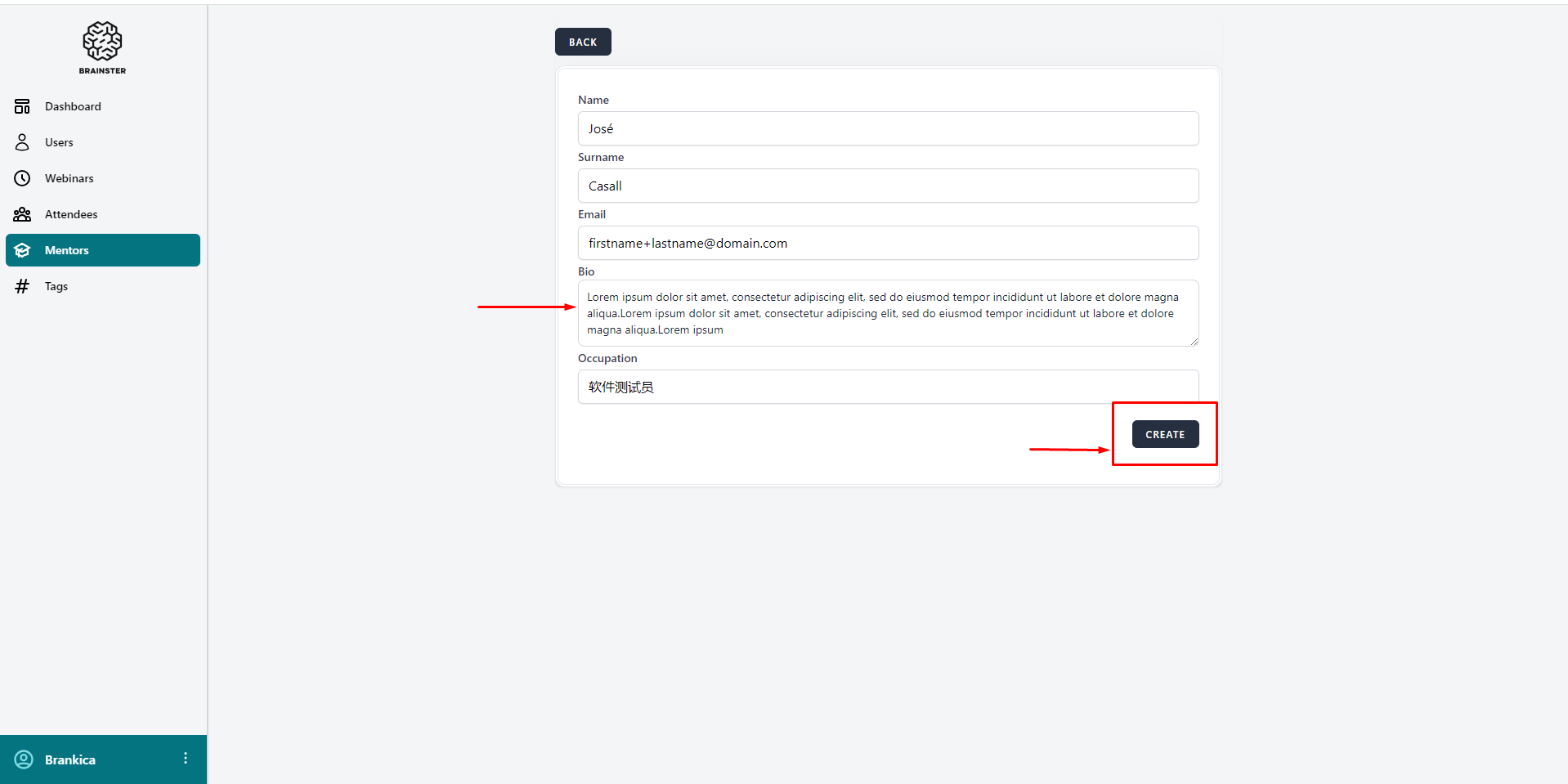
A user can successfully create a Mentor using non-Latin and non-Cyrillic letters in the occupation input field
Steps to reproduce:
1. Log in to Interrapt page, https://qainterrapt.brainster.xyz/login
2. Open the Mentors page
3. Click on the 'Create' button
4. Fill in the occupation input field with non-Latin and non-Cyrillic letters (软件测试员)
5. Fill in the other input fields according to the specification
6. Click the 'Create' button
Expected Result:
An error message in red letters should appear under the occupation input field indicating that the field is required and the Mentor should not be created
Actual Result:
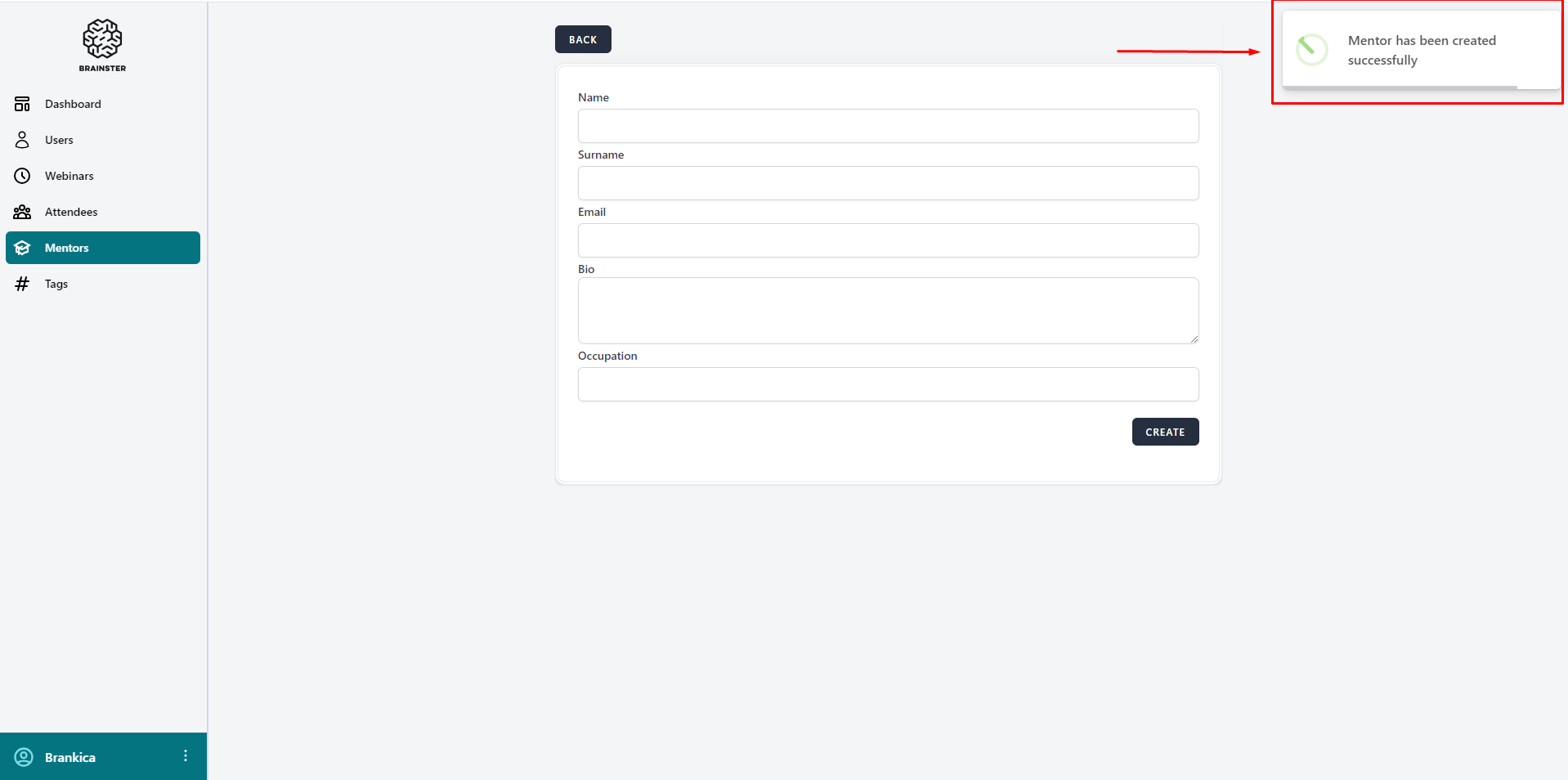
The Mentor is successfully created
Platform:
Windows 10
Google Chrome 121.0.6167.86 (Official Build) (64-bit)
Opera 106.0.4998.52
Microsoft Edge 120.0.2210.144 (Official build) (64-bit)
Mozilla Firefox 122.0
Files
Updated by Iva Velkovska over 2 years ago
- Subject changed from A mentor is successfully created with special characters to A mentor is successfully created with special characters in input fields
- Description updated (diff)
Updated by Iva Velkovska over 2 years ago
- File deleted (
special characters mentor.png)
Updated by Iva Velkovska over 2 years ago
- File deleted (
special characters mentor 2.png)
Updated by Iva Velkovska over 2 years ago
- File occupation japanese Mentor.png occupation japanese Mentor.png added
- File occupation japanese Mentor 2.png occupation japanese Mentor 2.png added
- Subject changed from A mentor is successfully created with special characters in input fields to Mentor created with non-Latin and non-Cyrillic letters in occupation field
A user can successfully create a Mentor using non-Latin and non-Cyrillic letters in the occupation input field
Steps to reproduce:
1. Log in to Interrapt page, https://qainterrapt.brainster.xyz/login
2. Open the Mentors page
3. Click on the 'Create' button
4. Fill in the occupation input field with non-Latin and non-Cyrillic letters (软件测试员)
5. Fill in the other input fields according to the specification
6. Click the 'Create' button
Expected Result:
An error message in red letters should appear under the occupation input field indicating that the field is required and the Mentor should not be created
Actual Result:
The Mentor is successfully created
Platform:
Windows 10
Google Chrome 121.0.6167.86 (Official Build) (64-bit)
Opera 106.0.4998.52
Microsoft Edge 120.0.2210.144 (Official build) (64-bit)
Mozilla Firefox 122.0